How to Start a Quiz, Mock Test or PYP
From finding your quiz to submitting answers and reviewing your performance — here's everything you need to know.
Getting to Your First Question
Follow these steps from login to the moment your first question appears.
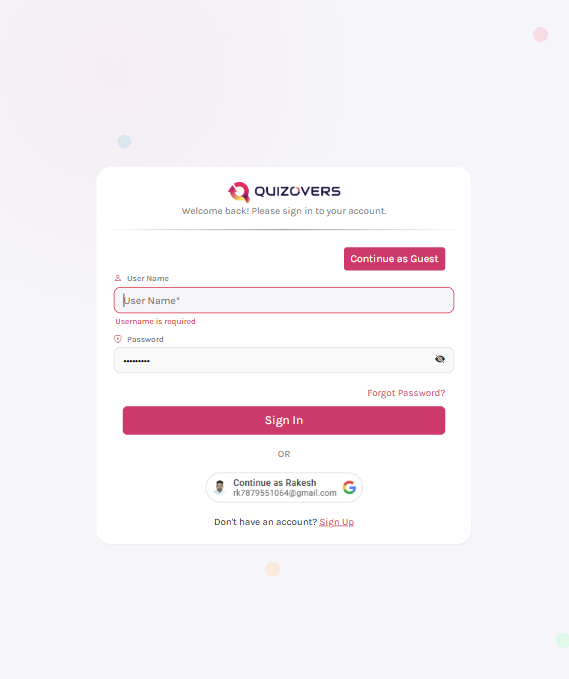
Log In to Your Account
Sign in to Quizovers to access your personalised quiz library. All your mock tests, PYPs, and quiz history are tied to your account.
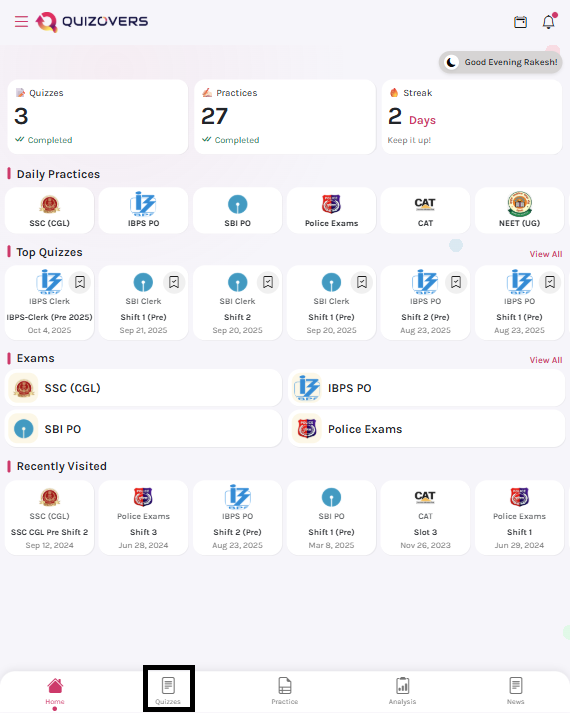
Tap the Quiz Icon in the Bottom Navigation
The second icon in the bottom navigation bar takes you to the Quizzes section. This is your hub for all Mock Tests and Previous Year Papers (PYPs).
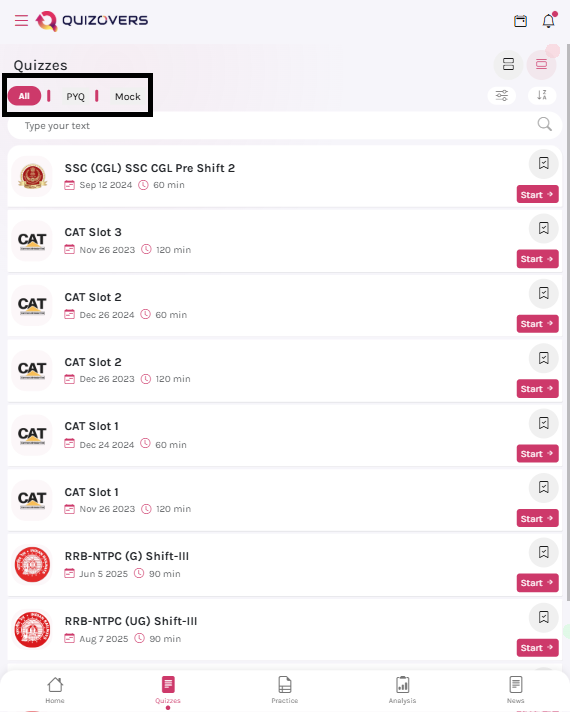
Filter by Mock Test or PYP
By default, all quizzes are shown. Use the filter tabs at the top to switch between Mock Tests and PYPs. The list updates instantly — no page reload needed.
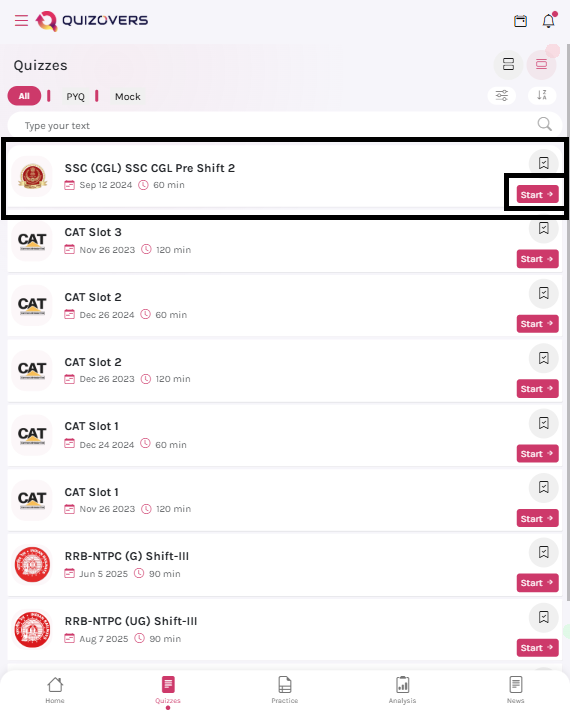
Select a Quiz and Tap Start
Each quiz card shows the exam name, number of questions, duration, and type. Tap the Start button on any card to go to its detail page.
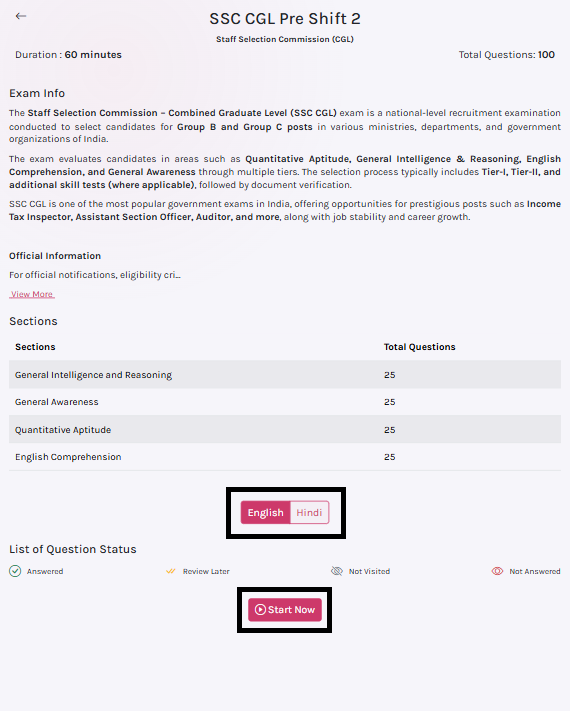
Review Details and Choose Language
The quiz detail page shows a subject-wise breakdown — each subject with its question count. For supported exams, you can also choose between Hindi and English before starting.
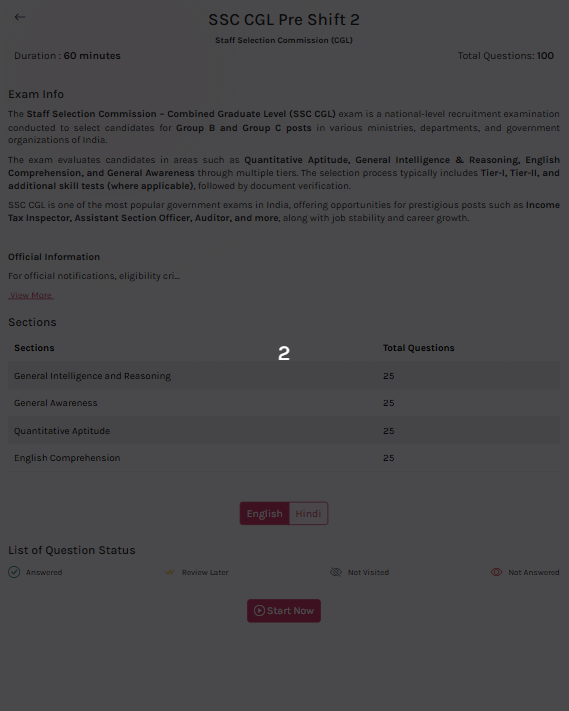
3-Second Countdown, Then First Question
After tapping Start, a 3-second countdown begins. The first question appears automatically. Your timer starts as soon as the quiz begins — stay focused!
Inside the Quiz Screen
Here's what every button and control does during a live quiz.
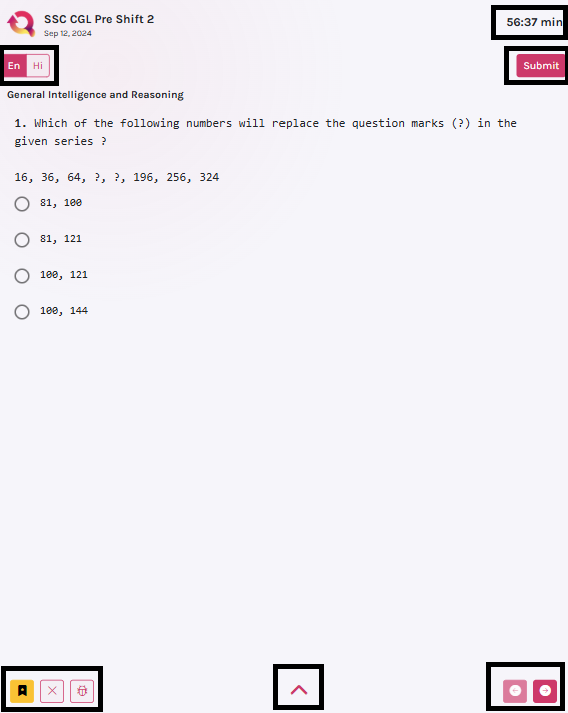
Switch between Hindi and English mid-quiz for any supported exam.
Countdown timer is always visible. Hit Submit when you're ready to finish.
Flag a question to revisit before final submission. Shown in yellow in the question palette.
Deselect your current answer for the active question without moving forward.
Found an error in a question? Report it directly from the quiz screen.
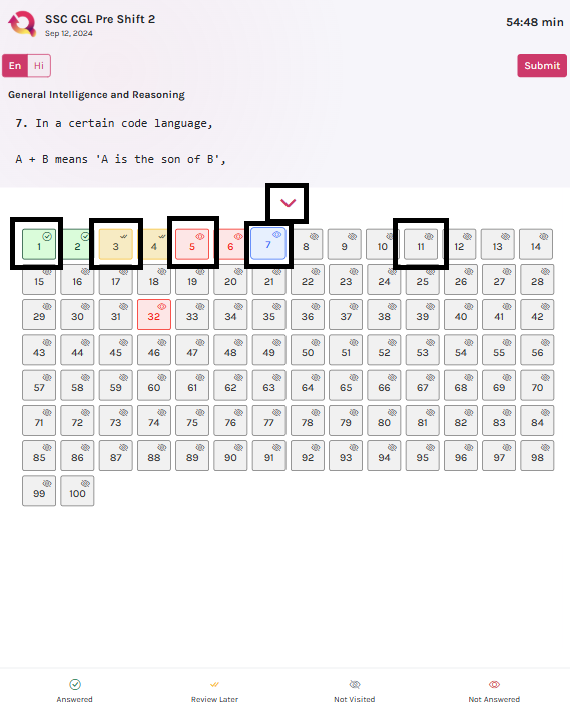
Tap the up arrow to open the full question palette with colour-coded status for every question.
Navigate between questions using the Previous and Next buttons.
Question Palette — Know Where You Stand
Tap the ↑ up arrow at the bottom centre during the quiz to open the full question palette. Each question is colour-coded so you can quickly see what needs attention.
After Submission — Your Performance Analysis
Once you submit, Quizovers immediately shows you a detailed breakdown of your performance — overall and subject-wise.
Use the subject-wise breakdown to identify your weakest areas and focus your next practice session there.